


Manually exporting NetSuite data to Excel is a common workflow that finance teams use to generate reports and analyze financial data. But keeping those exports accurate, current and controlled once the data leaves NetSuite is where common issues surface.
What starts as a quick download turns into a repeat cycle of rerunning searches, renaming files, rebuilding formatting and validating totals every time transactions change. Understanding the key steps of manually exporting NetSuite data into Excel helps you connect the dots to the issues it creates, bringing you one step closer to streamlining reporting workflows.
Key highlights:
- Exporting NetSuite data to Excel is a five-step loop that compounds rework with every stakeholder request.
- The failure points are not the export workflow itself, but the version drift, refresh churn and governance gaps that begin once files leave NetSuite.
- Activating a direct NetSuite-to-Excel connection shifts reporting from file handling to analysis. You’ll have faster iteration, cleaner governance and defensible outputs.
- Zone & Co’s Solution 7 connects Excel directly to NetSuite, allowing finance teams to refresh board-ready reports in place without rebuilding models or managing multiple versions.
Export NetSuite data to Excel: Key steps
The manual export process follows a predictable sequence that finance teams repeat dozens of times each week. Here’s how it works.
1. Open the desired report or saved search
Log in to NetSuite and navigate to the specific saved search or report that contains the data you need. For standard reports, this means drilling through the Reports menu hierarchy. For custom saved searches, you’re likely accessing them through Lists > Search > Saved Searches.
If the report doesn’t exist yet, you’ll need to build it first. This means defining criteria, adding columns, setting filters and testing results. Key subtasks include:
- Navigate to Reports > Saved Searches > All Saved Searches
- Locate the correct search by name or create a new one
- Set appropriate date ranges and filter criteria
- Add or remove columns to match reporting requirements
- Preview results to confirm the search returns expected data
2. Select Excel as the export format
Once your report displays the correct data, go to the footer of the report. Click the export icon of the format that you want to choose. In this case, it would be the Excel icon:
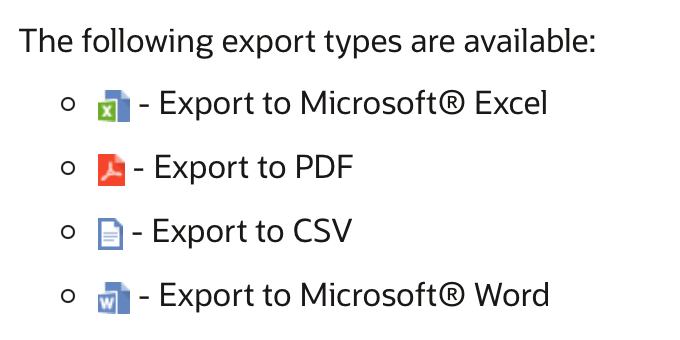
Your choice here determines how much cleanup work awaits you in the next steps. The export process involves:
- Select “Excel” or “CSV” from the format dropdown menu
- Wait for the export to download
3. Download and store the exported file
After selecting the format, the file downloads to your local machine, typically landing in your Downloads folder with a generic NetSuite-generated filename. You’ll need to rename it, add a date stamp and move it to the appropriate shared drive or folder structure where your team expects to find it.
This manual file management creates version control headaches. Is “Q4_Revenue_Report.xlsx” from yesterday, last week or last year? Did Sarah update the copy on the shared drive or just her local version? File organization steps include:
- Wait for the download to complete in your browser
- Locate the file in your Downloads folder
- Rename with a descriptive name and date stamp
- Move to the correct shared drive or team folder
- Update any index or tracking documents noting the new export
4. Validate and format the data
Open the exported file in Excel and begin the cleanup process. Exported data rarely arrives presentation-ready. Column widths need adjustment, headers require formatting and number formats default to general instead of currency or percentage. It’s worth noting that subtotals and formulas don’t transfer, so you're rebuilding calculations manually.
Then comes validation: spot-checking key figures against NetSuite to confirm the export captured the right data. If something looks off, you're heading back to NetSuite to adjust the saved search parameters and starting the export process again. Formatting tasks include:
- Adjust column widths for readability
- Apply number formatting (currency, percentage, accounting)
- Add or restore formulas that didn’t export
- Format headers with bold, colors or merged cells
- Spot-check key totals against NetSuite to validate accuracy
5. Share with or import into reporting tools
Once the data is formatted and validated, you’ll either email the file to stakeholders or import it into another tool for further analysis. If you’re building executive dashboards or board packets, this means copying formatted ranges into PowerPoint or consolidating multiple exports into a master workbook.
The recipient immediately asks a follow-up question that requires slightly different data cuts. You’re back to step one, repeating the entire sequence for a modified version of the same report. Distribution steps include:
- Email the file to stakeholders with context on date range and assumptions
- Upload to shared folders or document management systems
- Copy formatted tables into PowerPoint presentations or executive summaries
- Import data into dashboards or other analytical tools
- Document what version was shared and when for audit trail purposes

How manual NetSuite exports to Excel create reporting issues
Understanding each step reveals where inefficiencies accumulate and why organizations struggle to scale their reporting with growth.
1. Refresh churn slows accurate reporting
Manual exports create a reporting model that only stays accurate if someone continuously re-runs searches, regenerates files and redistributes updated versions whenever transactions change. That might feel manageable in isolation, but then exporting NetSuite data to Excel dominates your time whenever numbers shift.
So when the CFO asks for updated numbers after new postings hit the ledger, your team has to restart the entire process or deliver reports your team isn’t confident in.
2. Version control fails
Versions slowly drift further away from control through small, but compounding, inconsistencies. But soon you have source-of-truth issues, such as:
- Multiple copies of “the same report”
- Local edits that never make it to the shared drive
- “Final_v3_REALLY_FINAL.xlsx” workflows
- Stakeholders forwarding stale attachments as if they’re current
Then stakeholders and leaders lose confidence in the numbers and have no trust in the reporting process.
3. Audit trail weakens when work leaves NetSuite
Inside NetSuite, every transaction change carries a timestamp, user attribution and system history that supports traceability and control across the financial lifecycle.
Then that NetSuite data is exported into Excel and teams lose the audit trail – unless you layer on a separate and informal governance process around file management.
When reports are built from manual exports, the logic behind adjustments and calculations frequently lives in someone’s memory, an email explanation or a comment buried in a cell. If an auditor challenges one line in a board deck and asks how it ties back to source data, how quickly can your team trace that number to NetSuite and defend the transformation logic?
4. Manual exports can’t scale
Manually exporting NetSuite data to Excel works at low volume. But when businesses shoot for growth, scaling with manual exporting breaks. One entity becomes three. Your accounts payable and accounts receivable teams transact in foreign currencies.
Formatting, validating and consolidating each NetSuite export into Excel erodes efficiency and blocks scaling. Even if those reports only take “a few minutes” each, you’re spending time on reporting, not executing strategies for growth.
How a direct NetSuite-to-Excel connection improves reporting
Implementing a direct NetSuite-to-Excel connection changes the unit of work. No more files, just refreshable reports directly linked to the ERP.
Instead of exporting data and fixing it, you pull live NetSuite data into Excel templates that refresh on demand, with consistent structure and traceable source logic.
Direct connection benefits
- Fewer refresh loops: Your NetSuite-to-Excel report updates without re-exporting and reformatting. No broken links and no delays in reporting.
- Cleaner version control: With only one report directly refreshing with live data, your version control gets back under true control with current numbers and a solid source-of-truth.
- Stronger traceability: Report logic stays tied to NetSuite data structures, making it easier to trace the outputs to the source transactions. It’s easier to see and easier to defend.
- Faster iteration: When leadership asks for a new cut by subsidiary, currency or time period, you adjust parameters or refresh the model rather than recreating the entire export sequence from scratch.
Integrate live NetSuite data directly into Excel with Solution 7
Manual exports were never designed to support real-time reporting, multi-entity consolidation or board-level iteration under tight deadlines. If your team is rebuilding the same Excel models every week just to keep numbers current, the issue is not Excel – it is the disconnect between your reporting layer and your ERP.
Zone & Co’s Solution 7 directly connects Excel to live NetSuite data, so your reports refresh in place without repeating the export, rename, reformat and revalidate cycle. Instead of managing files, you manage governed templates that stay aligned to your system of record while preserving the flexibility finance teams expect from Excel.
Here’s what it creates:
- Direct NetSuite-to-Excel connection
- Refreshable reporting templates
- Multi-entity and multi-currency reporting
- Role-based governance and control
- Board-ready reporting at scale
If your reporting cycle feels more like file management than financial analysis, it may be time to close the gap between NetSuite and Excel.
Book a demo to see Solution 7 in action, or explore with a self-guided tour to understand how direct NetSuite data can transform your Excel reporting workflow.