

If Claude can query your NetSuite data through a Model Context Protocol (MCP) connector, do you still need Solution 7? Our answer is yes, and the reason is auditability. Answering a finance question is one thing. Producing financial reports you can reproduce, reconcile and defend to auditors every month is another.
Claude is generative, so asking the same question twice can produce a differently worded explanation of the same figures. Solution 7 keeps your recurring report connected to NetSuite, so it refreshes with the same account selections and calculations and drills back to the transactions behind each balance. Together, Claude helps you spot what changed and draft the explanation while Solution 7 keeps the report itself consistent. Here’s how that works at month-end.
Key highlights
- Claude answers finance questions and drafts explanations, while Solution 7 keeps your recurring report connected to NetSuite so it refreshes each month and checks against the underlying transactions.
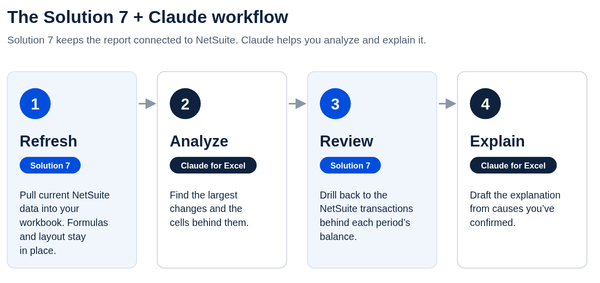
- The month-end workflow runs in four steps and ends with commentary for management that you’ve checked against confirmed findings.
- Claude’s cell references show which workbook figures it used, and Solution 7’s drill-back feature opens the NetSuite transactions behind each period’s balance.
- After a refresh, Claude adds the most value by flagging anomalies, drafting variance commentary and writing formulas for future report templates.
What Solution 7 does (and what Claude does differently)
At Zone & Co, our Solution 7 Excel add-in helps more than 1,500 customers report on NetSuite data. You choose which NetSuite data to bring into your workbook and build your reports from it. Next month, you’ll refresh the figures without recreating formulas or reformatting your report. When you need to investigate a balance, Solution 7’s built-in drill-back feature takes you from the reported figure to its supporting NetSuite transaction detail. It’s durable, auditable, and deterministic.
Through NetSuite’s AI Connector Service and MCP tools, Claude can retrieve records your NetSuite role can access. In Claude for Excel, you can ask questions about your workbook, edit it while keeping formulas intact or see which cells it used to answer your question. Solution 7 refreshes your configured report, while Claude generates an answer that may explain the same figures differently if you ask again. It’s generative and non-deterministic, which may introduce audit risk if used as a reporting process rather than an analysis tool.
The Solution 7 + Claude workflow
These four steps take you from refreshing your report to explaining the results to management. To follow along, you’ll need a reconciled Solution 7 workbook and Claude for Excel installed and signed in. Because Claude will work with the report in Excel, you don’t need a direct MCP connection to NetSuite. NetSuite remains your financial system of record, and you approve the report and explanation.
1. Refresh
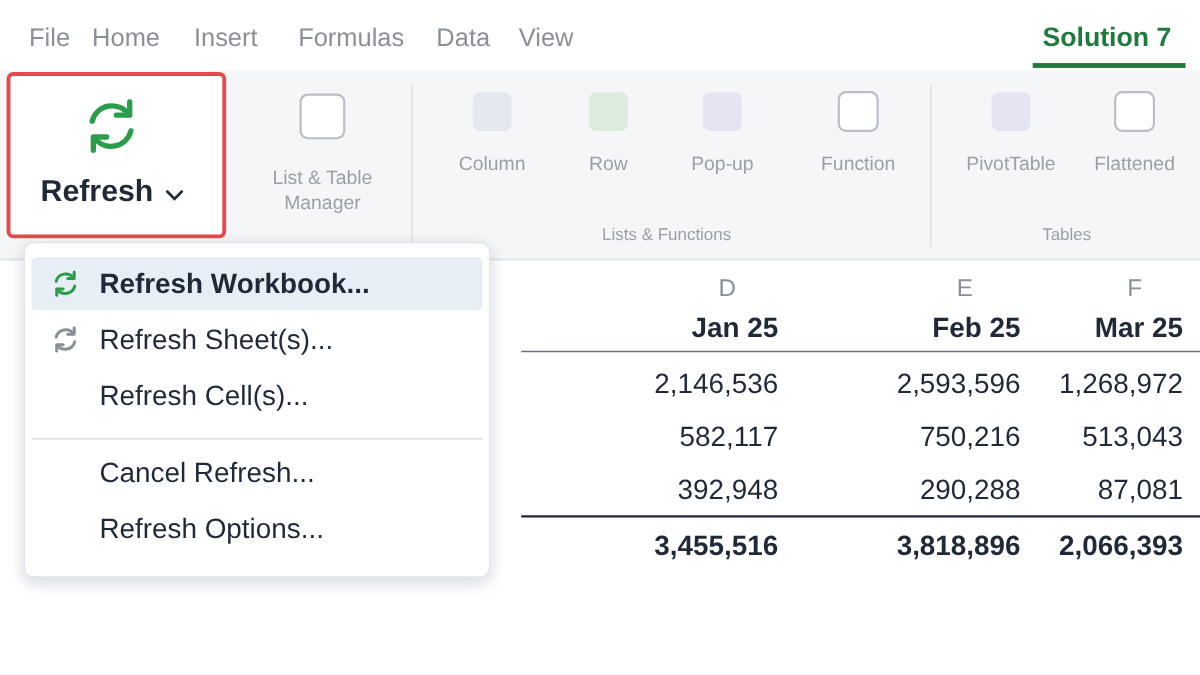
Select the accounting period and click Refresh in Solution 7. This updates your retrieve tabs, the worksheets bringing NetSuite data into Excel. Your formulas, layout and drop-downs stay in place. Check that your pivot tables and charts reflect the new figures, then reconcile the totals. When you refresh, Solution 7 retrieves the data available at that moment. You can refresh again to bring later postings into your report.
2. Analyze
In Claude for Excel, try this example prompt, replacing “P&L” with your worksheet’s name: “Using the P&L tab, find the three largest Q3 versus Q2 expense increases by amount, excluding subtotals. Show both period values and the difference, identify the cells you used and flag items to investigate. Don’t change the workbook or guess at causes.” Excluding subtotals avoids counting expenses twice. When Claude responds, check its amounts against the cells it identifies.
3. Review
Claude’s cell references take you to the figures in your workbook. To find out why those figures changed, use Solution 7’s drill-back feature to open the NetSuite transactions supporting each period’s balance. If your software expenses have increased, for example, look for an annual renewal, added licenses or an incorrect posting. When the records don’t explain the change, check with the budget owner for more context.
4. Explain
Point Claude to the relevant workbook figures, share the cause you’ve confirmed and ask it to draft an explanation for management. For an annual renewal, it needs the amount recorded as an expense in that period. If the workbook doesn’t show that separately, provide it from your transaction review. Then check the draft against your findings before sharing it. If later postings change the figures, refresh and update the analysis and commentary.
Why not just use Claude with the NetSuite MCP directly?
You can use Claude directly through Oracle’s MCP tools to run existing reports or saved searches, reusing your defined data selections. But for a recurring management report, Solution 7 refreshes the workbook you’ve built around those selections, keeping its formulas and layout in place. Claude can then analyze the updated figures. If you ask Claude to update the workbook with MCP results instead, review the changes it makes.
Your report keeps the same structure every period
You can use Claude directly through Oracle’s MCP tools to run existing reports or saved searches, reusing your defined data selections. For a recurring management report, Solution 7 refreshes the workbook you’ve built around those selections, keeping its formulas and layout in place. Claude can then analyze the updated figures. If you ask Claude to update the workbook with MCP results instead, review the changes it makes.
Let’s say your report groups licenses, support and hosting under the software expense category. When Claude analyzes the workbook, it can use that combined total. A direct MCP query might return each account separately, depending on your instructions. These hypothetical response excerpts show how each approach might present the figures:
- Claude analyzing the Solution 7 workbook: “Software expense rose from $150,000 in Q2 to $210,000 in Q3, an increase of $60,000 (P&L!D12:F12). Check the underlying transactions to establish the cause.”
- Claude using an MCP query grouped by GL account: “Licenses increased $30,000, support $20,000 and hosting $10,000.”
Both describe the same $60,000 increase. The breakdown shows how much came from licenses, support and hosting. The workbook answer ties the increase to the software expense line your board sees and cites the cells behind it, so you can check it against the report and use Solution 7’s drill-back feature to open the transactions behind each period’s balance. Next quarter, you’ll refresh that same line.
Your auditor needs to see how each number was produced
Auditors need the source transactions, how the number was calculated and proof that the report was prepared the same way each period. Claude can query NetSuite directly through MCP, but an AI-generated report doesn’t come with that evidence on its own. Unless your team documents every query, calculation and change, finance has to reconstruct how the figures were produced when the auditor asks. That means more audit preparation, more follow-up questions and potentially higher audit fees.
Solution 7 gives auditors a more familiar path. Your report uses defined account groupings and formulas they can inspect, and it refreshes the same way each period. When a number needs investigating, drill-back opens the supporting NetSuite transactions. Solution 7 doesn’t replace your audit controls or approval process, but it makes the supporting information easier to trace, verify and explain.
Where Claude adds the most value on top of Solution 7
After refreshing your report, you can turn to Claude for help finding and explaining changes in the figures or building formulas for future reports.
- Anomaly detection across the P&L. Ask Claude to look across the report for unusual changes, specifying the comparison period and how large a change needs to be before you want it flagged. That helps you focus on significant expenses without being distracted by a large percentage increase on a small balance. You can then review the supporting records and speak with budget owners when you need more context to explain a flagged item.
- Variance and flux commentary. Once you’ve confirmed why an expense changed, point Claude to the amounts and share your findings so it can draft an explanation for management. Explain whether the increase is a timing issue or an ongoing cost, because a one-off adjustment affects your forecast differently from a higher monthly run rate. Check that the commentary makes that distinction accurately.
- Template creation. You can ask Claude to write SUMIFS formulas that total amounts by account and period, add INDEX/MATCH lookups or extend your report layout. Tell it which retrieve tabs and cells to use and what you want to calculate, then check the result against a known balance. If you’re making larger changes, work on a copy. Before reusing the workbook next period, check that the formulas still include the right accounts.
Getting started using Solution 7 and Claude in Excel
Month-end reporting moves faster when the report stays connected to NetSuite. Solution 7, the Excel add-in used by more than 1,500 customers, pulls your NetSuite data into a workbook and refreshes it each period. Claude or Copilot can then analyze the refreshed figures while your reporting stays in Excel.
- Refresh instead of rebuild: Change the accounting period and click Refresh, and your formulas, layout and drop-downs stay in place, so next month’s report starts from this month’s file.
- Report on the NetSuite data you choose: Select what to bring into your workbook and build your reports around the account groupings and layout your board expects.
- Trace any number to its source: Drill-back opens the NetSuite transactions behind a reported balance, so you can check what’s behind a variance before you explain it.
- Check AI answers against the report: Claude or Copilot can analyze the refreshed workbook, and its cell references and Solution 7’s drill-back let you verify each answer before anything reaches management.
Most teams can install Solution 7 and start building NetSuite reports within about an hour once the NetSuite connection is configured, so allow time to build and check them before month-end close. Solution 7 customers report 2+ days saved on month-end reporting and 90% less time spent reporting via its repeatable, auditable, governed process.