


A 40-page PDF arrives in your accounts payable (AP) inbox from your facilities management vendor. Inside are 12 invoices for repairs at 12 of your properties. Sure, your invoice capture software can extract the details for you, but if it can only process one invoice per file, you’ll have to find where each bill starts and ends first – then save the files individually and give each one a name.
When multi-invoice PDFs come in regularly, the time it takes to split them can add up. It’s time you could be spending on other priorities and time that counts toward your invoice processing costs. Here’s the hidden work of splitting multi-invoice PDFs and a few tips that can help you spend less time on it.
Key highlights:
- Vendors bundle invoices into one PDF because it’s easier, but accounts payable teams typically work one bill at a time, making them hard to process.
- A team handling 20 bundled PDFs a week at nine minutes each spends 150 hours a year on splitting multi-invoice PDFs.
- PDF splitting tools can cut that time, but they work best on consistent layouts and still leave your team to check each file.
- Logging splitting time for one week, annualizing it and multiplying by your blended hourly cost can help you identify bottlenecks and a starting place to automate it.
Why vendors send multi-invoice PDFs
Bundling is an efficient way for your vendors to send all the bills for your account in one attachment.
That’s why a facilities vendor delivered all 12 property invoices in one PDF, a utility might group invoices for several meters and a staffing agency might send separate invoices, all in one weekly PDF.
Meanwhile, your accounts payable process runs on individual bills. Each one may need its own GL coding, approver and due date, and a question about one charge shouldn’t hold up the other invoices. So when your vendors bundle invoices and your invoice capture software needs each one as its own file, the splitting work falls to your team.
What it takes to process a multi-invoice PDF by hand
Let’s take a 40-page PDF with 12 invoices bundled within it as an example. Here are the six steps it takes to get those 12 invoices ready for invoice capture.
1. Open the PDF and start scrolling. You look for invoice headers and numbers. The next page could continue the same invoice’s line items or begin a different bill, so you follow each one through its charges, total and any supporting pages before marking its end.
2. Mark where each invoice starts and ends. The first invoice runs from page 1 to page 3. The second starts on page 4 and ends halfway down page 7, and the third begins immediately below it. That shared page will need to be split.
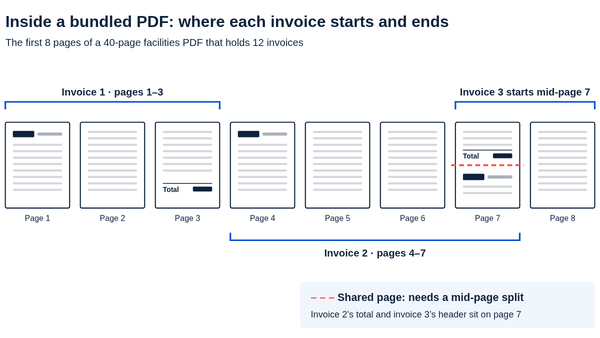
3. Split the file and check that each invoice is complete. In your PDF editor, you extract the marked page ranges into separate files. Where two invoices share a page, you need a function that can divide the page itself, keeping each bill’s charges, total and supporting detail intact.
4. Rename every file. You enter your team’s usual details, such as the vendor name and invoice number, 12 times. A mistyped number can make a file harder to find or associate with the right bill, so you compare the filename with the invoice before moving on.
5. Submit each file individually. Once the 12 complete files are ready, you upload or email them to your invoice capture software and confirm that all 12 arrived. From here, each file moves through capture like any other invoice.
6. Move on to the next bundle. You now have 12 invoices submitted for data extraction, with coding, matching and approval still ahead. The next bundled PDF requires the same preparation before you can submit its invoices.
Why this time-suck stays invisible
When you review how well your AP automation is working, you’re likely to focus on what happens inside the software. But the time your team spends getting invoices ready to submit can be easy to overlook.
- Preparation time can be missed when you start measuring invoice processing at submission. Your software may show a quick approval without accounting for the minutes you spent splitting and checking the file beforehand.
- When several people share the preparation work, each person sees only part of the total time it takes. You might handle one bundle while a colleague handles another. Each task may feel too small to raise as a problem, until you add up everyone’s time.
- Splitting PDFs can become so routine that you stop questioning how much time it takes. It becomes part of how the morning starts, and you teach new colleagues to do it too. When you discuss improvements, you may focus on coding or matching because you already accept file preparation as part of the job.
If your team handles 20 bundled PDFs a week at nine minutes each, that means you’re spending three hours a week preparing files. Over 50 working weeks, that adds up to 150 hours a year – nearly four 40-hour work weeks.
How PDF splitting tools help (and where they stop)
Basic PDF splitting tools can reduce the time you spend separating pages into individual files. Functions in Adobe Acrobat’s page organizer, Smallpdf and iLovePDF let you extract selected pages. You can also use a fixed page-count rule, while some dedicated tools can split at blank pages.
The time you save depends on how consistently your invoices are laid out. Splitting after every second page works for two-page invoices. But one extra page of charges throws off that split and every one after it. Blank-page splitting works when blank pages separate complete invoices. A blank page inside an invoice can cause an unwanted split. With either method, you still need to check that each file contains a complete bill and has a useful filename.
For the same 20 PDFs a week, suppose a splitting tool cuts preparation from nine minutes per PDF to three, including the time you spend checking and correcting the files. Over 50 working weeks, you would spend 50 hours preparing files instead of 150. That frees 100 hours for other work, though you still have 50 hours of preparation to do.
Your own savings will depend on the files you receive and how much work the tool removes.
How to measure the hidden cost and make the case
To measure the hidden cost of multi-invoice PDF splitting, track the splitting time across your AP team for one week, annualize it and multiply by the blended hourly cost of the people doing it.
1. Calculate the work for one week. Use a shared spreadsheet or Slack channel to record the vendor, number of invoices in each PDF and time spent splitting, naming and checking the files. Ask everyone who prepares these bundles to log their time. The goal is a real number you measured yourselves, so you don’t have to rely on an estimate.
To improve accuracy, leave out the steps you would take even if the files arrived separately, such as submitting invoices and coding charges. Also, choose a regular week, not a period when you’re handling more or fewer multi-invoice PDFs. And if bundles arrive monthly, track a full month and convert it to a weekly average.
2. Annualize the hours and calculate the cost. Multiply the weekly hours by 50 working weeks, then by the blended hourly employment cost of the people doing the work. If staff time costs $40 an hour, the 150 hours in our example cost $6,000. Freeing 100 of those hours gives your team $4,000 worth of time for work such as resolving invoice discrepancies or investigating suspicious charges.
3. Bring it to your next automation review. Take your time log and a typical bundled PDF to your next discussion about AP automation and AP intelligence. Ask, “Does our capture tool handle multi-invoice documents, or are we splitting them manually before the tool sees them?” If your team is doing the splitting, your time log can help you demonstrate what that work costs.
If you follow these steps, next time that 40-page PDF from your facilities vendor shows up in your inbox, you’ll know how much time it takes to get the 12 invoices inside ready to process. Then your team can decide whether those hours are worth spending.